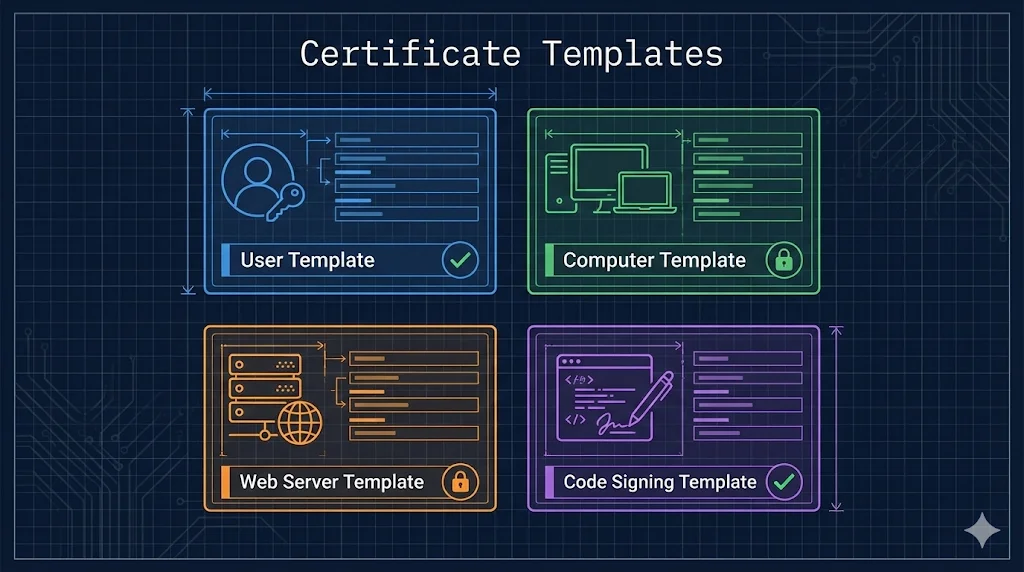
What are Certificate Templates?
Certificate Templates are blueprints that define what properties a certificate will have, who can request it, and how it can be used. Think of them as pre-configured recipes - instead of manually specifying every certificate field, you select a template and the CA fills in the details.
Templates control everything: key size, validity period, what the certificate can be used for (authentication, encryption, signing), and who has permission to enroll. Enterprise CAs require templates - you can't issue a certificate without one.
Templates Define:
- Cryptography: Key algorithm (RSA/ECC), key size, hash algorithm
- Purpose: What the certificate can do (client auth, server auth, code signing)
- Permissions: Who can request, who can enroll, who can autoenroll
- Subject Name: How the certificate name is built (from AD, or requester-supplied)
Built-in Templates
Windows Server includes dozens of pre-configured templates. Here are the most commonly used ones:
| Template | Purpose | Auto-enroll |
|---|---|---|
User | Email encryption (S/MIME), EFS, client authentication | |
Computer | Machine authentication, IPsec | |
Domain Controller | DC authentication, LDAPS, smart card logon | |
Web Server | HTTPS/TLS for web servers (IIS, Apache, etc.) | |
Code Signing | Sign scripts, executables, drivers | |
Workstation Authentication | 802.1X network authentication for workstations |
Note: Templates with auto-enroll support can be configured to automatically deploy certificates via Group Policy. See Autoenrollment for details.
Why Duplicate, Not Modify
Warning: Never Modify Built-in Templates Directly
Built-in templates are the "factory defaults." Modifying them directly causes several problems:
No Rollback
If you break something, there's no "undo." You'd have to manually restore settings or reinstall ADCS to get the original back.
Windows Updates May Reset
Microsoft occasionally updates built-in templates. Your customizations could be overwritten.
Audit Confusion
Security auditors expect built-in templates to have standard settings. Custom changes to built-ins are unexpected and harder to track.
Best Practice: Duplicate First
- Right-click the built-in template → "Duplicate Template"
- Give it a meaningful name (e.g., "Contoso Web Server v2")
- Make your customizations to the copy
- Publish the copy to your CA
- Keep the original untouched as a reference
Key Template Settings
When you open a template's properties, you'll see several tabs. Here are the most important ones:
General Tab
- •Template display name: What users see when requesting
- •Validity period: How long certificates last (e.g., 1 year, 2 years)
- •Renewal period: How early before expiration users can renew
- •Publish to AD: Makes the template available forest-wide
Request Handling
- •Purpose: Signature, Encryption, or both
- •Export private key: Allow or disallow key export
- •CA certificate manager approval: Require manual approval for requests
Cryptography
- •Provider category: Key Storage Provider (KSP) for modern apps
- •Algorithm: RSA or ECDSA (ECC)
- •Minimum key size: RSA 2048+ or ECDSA P-256+
- •Hash algorithm: SHA256 or stronger (avoid SHA1)
Subject NameSecurity Critical
- •Build from AD: CA populates subject from Active Directory (safer)
- •Supply in request: Requester specifies the subject name (dangerous!)
ESC1 Attack Vector
"Supply in request" with client authentication = ESC1 vulnerability. An attacker who can enroll could request a certificate for any user, including Domain Admins. See ADCS Security for details.
Security (Permissions)
- •Read: Can see the template exists
- •Enroll: Can request certificates using this template
- •Autoenroll: Can receive certificates automatically via Group Policy
- •Write: Can modify the template (dangerous - limit to PKI admins)
For autoenrollment to work, users/computers need both Enroll and Autoenroll permissions. See Autoenrollment for setup steps.
Template Versions
Templates have version numbers (schema versions) that determine which features are available. Higher versions require newer Windows but offer more capabilities.
| Version | Minimum OS | Key Features |
|---|---|---|
| V1 | Windows 2000 | Basic templates, cannot be modified or duplicated |
| V2 | Windows Server 2003 | Duplicatable, autoenrollment, issuance policies |
| V3 | Windows Server 2008 | CNG/KSP support, Suite B (ECC), SHA-2 |
| V4(Recommended) | Windows Server 2012 | Key attestation, TPM support, renewal with same key |
Recommendation: Use V4 templates for new deployments. They support all modern cryptography options and features like TPM key attestation for high-security scenarios.
Common Mistakes
Granting Autoenroll to Everyone
Don't give "Authenticated Users" autoenroll on sensitive templates. Use targeted security groups for each template type.
Allowing Subject Name in Request + Client Auth
This is the ESC1 vulnerability. Never combine "Supply in request" with client authentication EKU unless you have manager approval required.
Forgetting to Publish Template to CA
Creating a template doesn't make it available. You must right-click the CA → Certificate Templates → New → Certificate Template to Issue → select your template.
Using V1 Templates
V1 templates can't be duplicated or modified. If you need to customize, duplicate to a V2+ template first.
Weak Cryptography Settings
Avoid RSA 1024-bit keys and SHA-1 signatures. Modern standards require RSA 2048+ or ECDSA P-256+, with SHA-256 or stronger.
Allowing Private Key Export on Sensitive Templates
Disable key export for authentication certificates. Only enable export when absolutely necessary (e.g., backup scenarios).
Next Steps
Related Resources
Template Permissions Deep Dive
Master Read, Enroll, and Autoenroll permission configuration.
Autoenrollment
Deploy certificates automatically via Group Policy.
ADCS Security
ESC1 attack and other template-related vulnerabilities.
ADCS Architecture
Root CA vs Issuing CA and two-tier PKI design.
CA Hierarchy Guide
Certificate chains and trust anchor fundamentals.
NDES Guide
SCEP protocol for network device certificate enrollment.