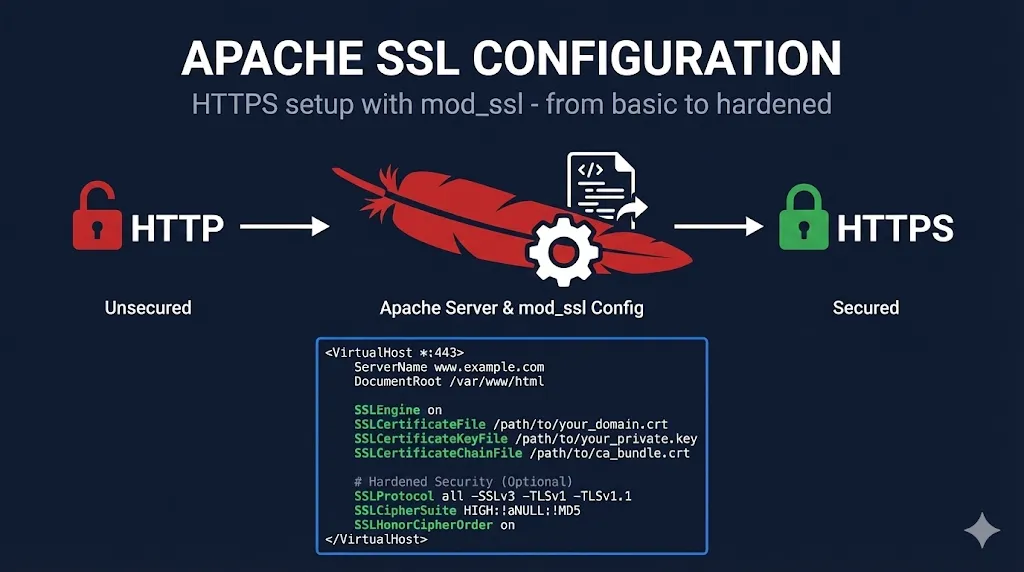
1. PKI Pro Quick Scan
Already know Apache? Here's the quick reference:
- Module:
mod_ssl- enable witha2enmod ssl(Debian/Ubuntu) orLoadModule(RHEL/CentOS) - Cert paths:
SSLCertificateFile,SSLCertificateKeyFile,SSLCertificateChainFile(deprecated in 2.4.8+, useSSLCertificateFilewith full chain) - Hardened ciphers:
SSLProtocol all -SSLv3 -TLSv1 -TLSv1.1+SSLCipherSuitefrom Mozilla config generator - Test config:
apachectl configtestbefore reload - Common mistake: Wrong file permissions on private key (should be 600, owned by root)
2. Apache SSL Fundamentals
Apache uses mod_ssl to handle TLS/SSL connections. It's been the workhorse of HTTPS on the web since the late 1990s.
What You'll Need:
- Apache 2.4.x (2.2 is EOL - upgrade if you're still on it)
mod_sslenabled- A certificate (from Let's Encrypt, commercial CA, or self-signed for testing)
- The private key that matches the certificate
- Intermediate certificate(s) / chain file
Apache 2.4 vs 2.2 - Key Differences:
| Feature | Apache 2.2 | Apache 2.4 |
|---|---|---|
| Chain file | Separate SSLCertificateChainFile | Include in SSLCertificateFile |
| OCSP Stapling | Supported with additional config | Simpler SSLUseStapling on + SSLStaplingCache |
| SNI | Limited | Full support |
| HTTP/2 | Not supported | mod_http2 |
This guide assumes Apache 2.4. If you're on 2.2, seriously - upgrade first.
3. Enabling mod_ssl
Debian/Ubuntu:
# Enable the module
sudo a2enmod ssl

# Enable the default SSL site (optional)
sudo a2ensite default-ssl

# Restart Apache
sudo systemctl restart apache2
RHEL/CentOS/Rocky/Alma:
# Install mod_ssl if not present
sudo dnf install mod_ssl

# It auto-loads, but verify in httpd.conf or ssl.conf
grep -r "LoadModule ssl_module" /etc/httpd/

# Restart Apache
sudo systemctl restart httpd
Verify mod_ssl is loaded:
apachectl -M | grep ssl
# Should show: ssl_module (shared)
4. Basic SSL Virtual Host
Here's a minimal working configuration:
<VirtualHost *:443>
    ServerName www.example.com
    DocumentRoot /var/www/html

    SSLEngine on
    SSLCertificateFile /etc/ssl/certs/example.com.crt
    SSLCertificateKeyFile /etc/ssl/private/example.com.key

    # For Apache 2.4.8+, include chain in certificate file
    # For older versions, use SSLCertificateChainFile
</VirtualHost>File Locations (Conventions):
| Distro | Certificates | Private Keys | Config |
|---|---|---|---|
| Debian/Ubuntu | /etc/ssl/certs/ | /etc/ssl/private/ | /etc/apache2/sites-available/ |
| RHEL/CentOS | /etc/pki/tls/certs/ | /etc/pki/tls/private/ | /etc/httpd/conf.d/ |
Test Before Reload:
# Always test config before applying
apachectl configtest
# Should show: Syntax OK

# Then reload (not restart - keeps connections alive)
sudo systemctl reload apache2  # or httpd
5. Certificate Chain Configuration
The Apache 2.4.8+ Way (Recommended):
Concatenate your certificate and chain into one file:
cat example.com.crt intermediate.crt > example.com-fullchain.crt
Then reference just one file:
SSLCertificateFile /etc/ssl/certs/example.com-fullchain.crt
SSLCertificateKeyFile /etc/ssl/private/example.com.key
Order matters: Your certificate first, then intermediates, root last (or omit root - browsers have it).
The Legacy Way (Apache < 2.4.8):
SSLCertificateFile /etc/ssl/certs/example.com.crt
SSLCertificateKeyFile /etc/ssl/private/example.com.key
SSLCertificateChainFile /etc/ssl/certs/intermediate.crt
Verify Chain is Correct:
openssl s_client -connect www.example.com:443 -servername www.example.com
# Look for "Certificate chain" section
# Should show your cert, then intermediate(s)
Learn more about certificate chains → | OpenSSL s_client guide →
6. Production-Hardened Configuration
Don't just get HTTPS working - get it secure.
Mozilla SSL Configuration Generator:
Use ssl-config.mozilla.org to generate configs. Select:
- • Apache
- • Modern (TLS 1.3 only), Intermediate (TLS 1.2+), or Old (legacy support)
- • Your Apache and OpenSSL versions
Intermediate Profile Example:
Always regenerate from Mozilla's tool for your exact Apache/OpenSSL versions rather than copy-pasting blindly. The example below is a starting point.
<VirtualHost *:443>
    ServerName www.example.com
    DocumentRoot /var/www/html

    SSLEngine on
    SSLCertificateFile /etc/ssl/certs/example.com-fullchain.crt
    SSLCertificateKeyFile /etc/ssl/private/example.com.key

    # TLS 1.2 and 1.3 only (if your OpenSSL build supports TLS 1.3)
    SSLProtocol all -SSLv3 -TLSv1 -TLSv1.1

    # Strong cipher suites
    SSLCipherSuite ECDHE-ECDSA-AES128-GCM-SHA256:ECDHE-RSA-AES128-GCM-SHA256:ECDHE-ECDSA-AES256-GCM-SHA384:ECDHE-RSA-AES256-GCM-SHA384:ECDHE-ECDSA-CHACHA20-POLY1305:ECDHE-RSA-CHACHA20-POLY1305:DHE-RSA-AES128-GCM-SHA256:DHE-RSA-AES256-GCM-SHA384

    SSLHonorCipherOrder off
    SSLSessionTickets off

    # OCSP Stapling
    SSLUseStapling on
    SSLStaplingResponderTimeout 5
    SSLStaplingReturnResponderErrors off

    # HSTS (be careful - commits you to HTTPS)
    Header always set Strict-Transport-Security "max-age=63072000"
    # Optional: Header always set Strict-Transport-Security "max-age=63072000; includeSubDomains"
    # Only add includeSubDomains after testing all subdomains work with HTTPS
</VirtualHost>

# OCSP Stapling Cache (put outside VirtualHost)
SSLStaplingCache shmcb:/var/run/apache2/ssl_stapling(128000)

# Note: Verify your CA actually supports OCSP; some misconfigured
# responders can cause startup warnings or stapling failuresWhat Each Directive Does:
| Directive | Purpose |
|---|---|
SSLProtocol all -SSLv3 -TLSv1 -TLSv1.1 | Only TLS 1.2 and 1.3 |
SSLCipherSuite | Which encryption algorithms to allow |
SSLHonorCipherOrder off | Let client choose cipher (modern approach) |
SSLSessionTickets off | Improves forward secrecy |
SSLUseStapling on | OCSP stapling for faster validation |
Header ... Strict-Transport-Security | HSTS - enforces HTTPS (verify A/A+ SSL Labs grade before enabling) |
7. HTTP to HTTPS Redirect
Don't leave port 80 hanging - redirect it.
<VirtualHost *:80>
    ServerName www.example.com
    ServerAlias example.com

    # Redirect all HTTP to HTTPS
    Redirect permanent / https://www.example.com/
</VirtualHost>Or using mod_rewrite (more flexible):
<VirtualHost *:80>
    ServerName www.example.com

    RewriteEngine On
    RewriteCond %{HTTPS} off
    RewriteRule ^ https://%{HTTP_HOST}%{REQUEST_URI} [L,R=301]
</VirtualHost>8. SNI - Multiple SSL Sites on One IP
Server Name Indication lets you host multiple HTTPS sites on a single IP address.
# Site 1
<VirtualHost *:443>
    ServerName www.site1.com
    SSLEngine on
    SSLCertificateFile /etc/ssl/certs/site1.com-fullchain.crt
    SSLCertificateKeyFile /etc/ssl/private/site1.com.key
    DocumentRoot /var/www/site1
</VirtualHost>

# Site 2
<VirtualHost *:443>
    ServerName www.site2.com
    SSLEngine on
    SSLCertificateFile /etc/ssl/certs/site2.com-fullchain.crt
    SSLCertificateKeyFile /etc/ssl/private/site2.com.key
    DocumentRoot /var/www/site2
</VirtualHost>SNI Requirements:
- Apache 2.2.12+ with OpenSSL 0.9.8j+ (Apache 2.4+ preferred)
- All modern browsers support SNI
- Very old clients (IE on Windows XP, early Android) lack SNI and will see the default cert - usually acceptable in 2026
- On older distros, ensure
NameVirtualHost *:443is correct; mis-ordering vhosts can serve the wrong cert
9. Let's Encrypt with Certbot
The easiest way to get certificates on Apache:
Install Certbot:
Debian/Ubuntu:
sudo apt install certbot python3-certbot-apache
RHEL/CentOS:
sudo dnf install certbot python3-certbot-apache
Get Certificate and Auto-Configure:
Backup first: If you have existing hand-crafted SSL vhosts, back up the config files before letting Certbot auto-modify them so you can revert if needed.
sudo certbot --apache -d www.example.com -d example.com
Certbot will:
- Obtain the certificate
- Modify your Apache config to use it
- Set up auto-renewal
Manual Renewal Test:
sudo certbot renew --dry-run
Verify Auto-Renewal:
systemctl list-timers | grep certbot
Learn about ACME protocol → | Let's Encrypt troubleshooting →
10. File Permissions
Wrong permissions = Apache won't start, or worse, security vulnerability.
Required Permissions:
| File | Owner | Permissions | Notes |
|---|---|---|---|
| Private key | root:root | 600 | Only root can read |
| Certificate | root:root | 644 | World-readable is fine |
| Chain file | root:root | 644 | World-readable is fine |
| Config files | root:root | 644 | World-readable is fine |
Fix Permissions:
sudo chown root:root /etc/ssl/private/example.com.key
sudo chmod 600 /etc/ssl/private/example.com.key

sudo chown root:root /etc/ssl/certs/example.com-fullchain.crt
sudo chmod 644 /etc/ssl/certs/example.com-fullchain.crt
Never make private keys group- or world-readable (640/644) just to "fix" Apache startup errors. Fix ownership and paths instead.
Common Error:
AH02572: Failed to configure at least one certificate and key
Often caused by: wrong permissions, wrong file path, or key/cert mismatch.
11. Troubleshooting
Problem: Apache Won't Start After SSL Config
# Check syntax
apachectl configtest

# Check error log
tail -50 /var/log/apache2/error.log  # Debian/Ubuntu
tail -50 /var/log/httpd/error_log    # RHEL/CentOS
Problem: Certificate/Key Mismatch
# Compare modulus of cert and key - they must match
openssl x509 -noout -modulus -in cert.crt | openssl md5
openssl rsa -noout -modulus -in key.key | openssl md5
Problem: Chain Not Sent
openssl s_client -connect example.com:443 -servername example.com
# Look for "Certificate chain" - should show multiple certs
Problem: SSL Labs Grade Below A
Common causes:
- TLS 1.0/1.1 still enabled
- Weak ciphers in list
- No HSTS
- Missing OCSP stapling
Use ssllabs.com/ssltest and address each issue. Re-run after each change - results may be cached for a few minutes, so wait or use "Clear cache" when available.
12. Apache SSL Checklist
Before going live:
- apachectl configtest returns "Syntax OK"
- Private key permissions are 600
- Certificate chain is complete (test with openssl s_client)
- HTTP redirects to HTTPS
- TLS 1.0 and 1.1 are disabled
- HSTS header is set (if ready to commit)
- OCSP stapling is enabled
- SSL Labs grade is A or A+
- Auto-renewal is configured (if using Let's Encrypt)
- Certificate expiry monitoring is in place
13. Frequently Asked Questions
14. Key Takeaways
Use Apache 2.4+
2.2 is EOL and missing modern TLS features
Concatenate chains
In 2.4.8+, put cert + chain in one file
Test before reload
apachectl configtest saves headaches
Harden by default
Use Mozilla's config generator
Let's Encrypt + Certbot
Free, automated, no excuses
Permissions matter
600 on private keys, always