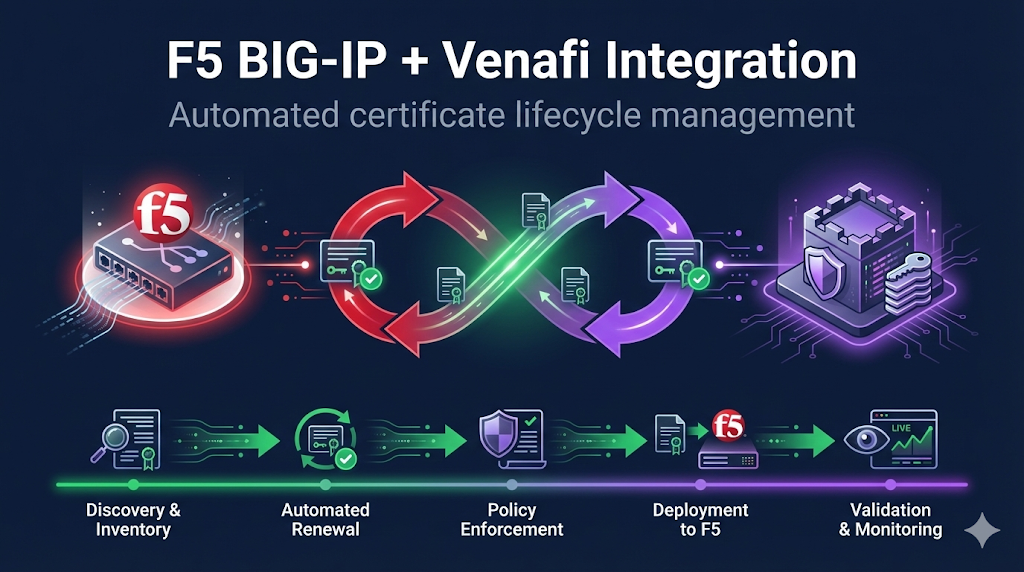
Why this guide matters: Almost nobody has written honestly about this integration from the practitioner side. Vendor docs show the happy path; this guide covers what actually happens in production.
Why Integrate F5 with Venafi?
The problem: Large enterprises have hundreds or thousands of SSL profiles across F5 devices. Managing certificates manually means:
- Missed renewals → outages
- Inconsistent configurations
- No audit trail
- Hours of repetitive work
- Human error at scale
The solution: Venafi discovers certificates on F5, tracks expiration, automates renewal, and pushes new certs—without touching the load balancer manually.
| Without Integration | With Integration |
|---|---|
| Manual cert tracking | Automated discovery |
| Spreadsheet inventory | Real-time dashboard |
| Renewal tickets | Automated provisioning |
| Config drift | Enforced standards |
| Audit scrambles | Continuous compliance |
Integration Architecture
┌─────────────────┐     ┌──────────────────────┐     ┌─────────────────┐
│                 │     │                      │     │                 │
│   F5 BIG-IP     │◄───►│  Venafi TPP/TLS-PD   │◄───►│  Certificate    │
│   (Target)      │     │  (Orchestrator)      │     │  Authority      │
│                 │     │                      │     │                 │
└─────────────────┘     └──────────────────────┘     └─────────────────┘
        ▲                         │
        │                         │
        └─────────────────────────┘
          iControl REST API
Venafi → F5 Communication
- Uses F5 iControl REST API
- Requires F5 credentials stored in Venafi
- Can discover, provision, and manage certificates
Integration Points
- Discovery - Find all certs on F5
- Provisioning - Push new/renewed certs to F5
- Installation - Create/update SSL profiles
- Validation - Verify successful deployment
Prerequisites Checklist
F5 Side
- iControl REST API enabled
- Service account created for Venafi
- Service account has appropriate role (Administrator or custom role with cert management)
- Network connectivity from Venafi to F5 management interface
- F5 version compatibility confirmed (BIG-IP 11.5+)
Venafi Side
- F5 BIG-IP driver/adapter installed
- Appropriate license for F5 integration
- Policy folder structure planned
- CA templates configured
Network
- Firewall rules: Venafi → F5 management IP (port 443)
- DNS resolution working both directions
- Certificates for Venafi-to-F5 communication trusted
F5 Service Account Setup
Option A: Administrator Role (Simple but Broad)
# tmsh commands on F5
create auth user venafi-svc password <secure-password> partition-access add { all-partitions { role admin } }Option B: Custom Role (Recommended for Production)
Create a role with minimum required permissions:
# Create custom role
create auth role venafi-cert-manager {
    description "Venafi certificate management"
    permissions {
        ssl-cert { all }
        ssl-key { all }
        ssl-profile { all }
        ltm-virtual { read }
    }
}

# Create user with custom role
create auth user venafi-svc password <secure-password> partition-access add { all-partitions { role venafi-cert-manager } }| Resource | Access | Why |
|---|---|---|
| ssl-cert | read/write | Manage certificates |
| ssl-key | read/write | Manage private keys |
| ssl-profile | read/write | Update SSL profiles |
| ltm-virtual | read | Discover virtual servers |
Venafi Adapter Configuration
Installing the F5 Adapter
The F5 BIG-IP adapter (driver) typically comes bundled with Venafi TPP or can be installed separately.
Location in TPP:
Platforms → BIG-IP → Drivers| Setting | Description | Example |
|---|---|---|
| Host | F5 management IP/hostname | bigip01.corp.local |
| Port | iControl REST port | 443 |
| Username | Service account | venafi-svc |
| Password | Stored in credential vault | ******** |
| Validate Certificate | Verify F5's management cert | Yes (recommended) |
Device Object in Venafi
Policy Folder
└── Network Devices
    └── Load Balancers
        └── bigip01.corp.local (BIG-IP device)
Discovery Configuration
Discovery finds existing certificates on your F5 devices.
What Gets Discovered
- Certificates in
/Common/and other partitions - Certificate-key associations
- SSL profiles using each certificate
- Virtual servers using each profile
- Expiration dates
Discovery Job Setup
- Create discovery job targeting F5 device(s)
- Specify partitions to scan (or all)
- Set schedule (daily recommended)
- Configure what to do with discovered certs:
- Import to inventory only
- Import and bring under management
- Alert on unknown certificates
Common discovery finding: Certificates you didn't know existed. This is the point—visibility first.
Provisioning Workflow
Once certificates are under Venafi management, the provisioning workflow handles renewals.
Workflow Steps
1. Certificate approaching expiration (e.g., 30 days)
         ↓
2. Venafi requests new certificate from CA
         ↓
3. CA issues certificate
         ↓
4. Venafi stores cert + key
         ↓
5. Venafi pushes to F5 via iControl REST
         ↓
6. F5 SSL profile updated with new cert
         ↓
7. Venafi validates deployment
         ↓
8. Old certificate archived/removed
Push to Existing SSL Profile
- Updates certificate in-place
- Virtual servers continue using same profile
- Zero-downtime renewal
Create New SSL Profile
- New profile with date-stamped name
- Requires virtual server reconfiguration
- Better for blue/green deployments
Recommended: Push to existing profile for most use cases.
SSL Profile Binding
The integration can manage SSL profile configuration, not just certificate content.
What Can Be Automated
- Certificate assignment to profile
- Key assignment
- Chain/intermediate certificate
- Profile settings (with caution)
What You Should Control Manually
- Cipher suite configuration
- Protocol versions
- Client certificate settings (mTLS)
- Session settings
Best practice: Let Venafi manage certificate lifecycle. Keep security configuration in your F5 change management process.
Multi-Partition Environments
Enterprise F5 deployments often use partitions for multi-tenancy.
/Common/        ← Shared resources, be careful
/Partition-A/   ← Team A's certificates
/Partition-B/   ← Team B's certificates
Service Account Scope
- Grant access only to partitions Venafi should manage
/Common/often contains shared certs—coordinate carefully- Different credentials for different partitions (if needed)
Policy Mapping
- Map Venafi policy folders to F5 partitions
- Different approval workflows per partition
- Separate inventory views per team
High Availability & Device Groups
F5 HA pairs and device groups require special consideration.
Scenario 1: Sync-Failover (Active/Standby)
Push certificate to active unit. Config sync propagates to standby. Venafi only needs to target active device.
Scenario 2: Sync-Only (Active/Active)
Push to one device. Sync propagates. OR push to both independently.
Scenario 3: No Sync (Standalone Pairs)
Must push to each device separately. Configure both as separate devices in Venafi.
Recommendation: Target the active device. Let F5's native sync handle propagation. Verify sync status after provisioning.
Common Integration Challenges
"Certificate installed but SSL profile not updated"
Cause: Certificate pushed to F5 but not bound to profile.
Fix: Check Venafi application object configuration. Verify profile binding settings. May need to manually associate first time.
"Discovery finds certificates but can't manage them"
Cause: Certificates were created outside Venafi workflow.
Fix: Import discovered certs to appropriate policy folder. Re-enroll through Venafi CA workflow. Or mark as "externally managed" if intentional.
"Provisioning fails with 401 Unauthorized"
Cause: Credential issues.
Fix: Verify F5 service account not locked/expired. Check password hasn't changed. Confirm role permissions haven't been modified.
curl -k -u venafi-svc:password https://bigip01/mgmt/tm/sys/version"Sync issues in HA pair after cert push"
Cause: Config sync not triggered or failed.
Fix: Check sync status. Trigger manual sync if needed. Verify both devices show same cert thumbprint.
tmsh show cm sync-statusOperational Best Practices
Staged Rollout
- Phase 1: Discovery only (read-only, build inventory)
- Phase 2: Manual provisioning (human approval for each push)
- Phase 3: Semi-automated (auto-renew, human approval for push)
- Phase 4: Fully automated (end-to-end, alerting only)
Don't skip phases. Build confidence gradually.
Monitoring and Alerting
Configure alerts for:
- Provisioning failures
- Discovery finding unknown certificates
- Certificates expiring within 14 days (failsafe)
- F5 connectivity issues
Change Windows
- Configure Venafi to only push during approved times
- Or use approval workflows for production F5s
- Development/test can be fully automated
Security Considerations
Credential Storage
- Use Venafi's credential vault
- Rotate F5 service account password periodically
- Monitor for credential access anomalies
API Security
- Enable audit logging on F5 for REST API calls
- Consider IP restrictions on service account
- Use certificate authentication if supported
Network Segmentation
- Venafi → F5 management network access
- Don't expose F5 management broadly
- Consider jump hosts for cross-zone access
Troubleshooting Checklist
When things go wrong:
- Can Venafi reach F5 management IP? (ping, telnet 443)
- Is F5 iControl REST responding? (curl test)
- Is service account valid? (test login via GUI)
- Does service account have correct role?
- Is target partition correct?
- Are there F5 config sync issues?
- Check Venafi adapter logs for errors
- Check F5 /var/log/restjavad.0.log for API errors
Frequently Asked Questions
Related Resources
F5 SSL Profiles Explained
Understand SSL profiles for Venafi-managed certificate deployment.
F5 Certificate Installation
Manual installation guide - useful for troubleshooting automation.
F5 SSL Troubleshooting
Debug SSL issues after Venafi certificate deployment.
What is Venafi?
Introduction to Venafi platform and machine identity management.
Certificate Discovery
Find and inventory certificates on F5 with Venafi discovery.
Chain Builder Demo
Validate certificate chains before automated deployment.
Need the F5 Certificate Checklist?
Our operational checklist covers everything for F5 certificate management.
View Checklist