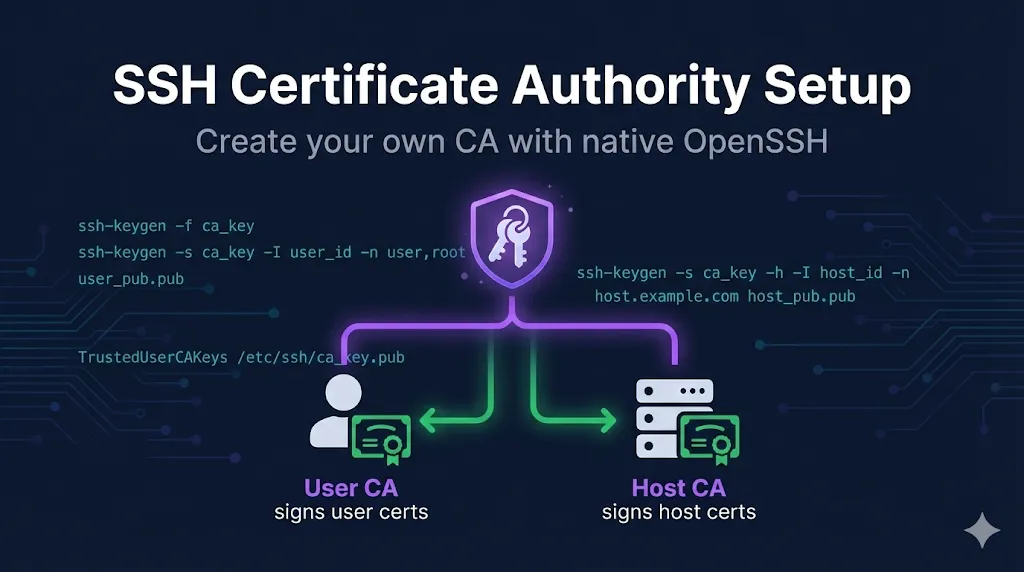
1. What is an SSH Certificate Authority?
Here's the surprising part: an SSH CA is just a key pair.
No special software. No complex infrastructure. No certificate chain hierarchy. Just a key pair that you designate for signing. This is different from X.509 PKI where you typically need a full CA application or managed service—SSH certificates work with native OpenSSH out of the box.
┌─────────────────────────────────────────┐
│       SSH Certificate Authority         │
│                                         │
│  ┌─────────────┐    ┌─────────────┐     │
│  │ Private Key │    │ Public Key  │     │
│  │   (signs)   │    │  (verifies) │     │
│  └─────────────┘    └─────────────┘     │
│        │                   │            │
│        ▼                   ▼            │
│   Keep SECRET         Distribute to    │
│   (offline/HSM)      servers/clients   │
└─────────────────────────────────────────┘
Signs certificates. Guard it carefully—this is the crown jewel.
Verifies signatures. Distribute it everywhere trust is needed.
That's it. If you can generate an SSH key pair, you can create a CA.
2. One CA or Two? The Architecture Decision
Best practice: Separate CAs for users and hosts.
┌─────────────────┐         ┌─────────────────┐
│    User CA      │         │    Host CA      │
│                 │         │                 │
│ Signs: user     │         │ Signs: server   │
│ certificates    │         │ certificates    │
│                 │         │                 │
│ Trusted by:     │         │ Trusted by:     │
│ SERVERS         │         │ CLIENTS         │
└─────────────────┘         └─────────────────┘
Why separate CAs? (Threat model perspective)
| Threat Scenario | Single CA Impact | Separate CAs Impact |
|---|---|---|
| User CA compromised | Attacker can impersonate servers AND users | Attacker can only create fake user certs |
| Host CA compromised | Attacker can impersonate servers AND users | Attacker can only create fake host certs |
| Audit trail | "Which type of cert was signed?" | Clear separation in logs |
| Rotation | Must rotate everything together | Rotate independently |
When single CA is acceptable:
- • Small environments (< 20 servers)
- • Lab/development setups
- • You understand and accept the risk
For production:
Two CAs. Always.
3. Creating the CA Key Pairs
On your CA host, create a dedicated directory and generate two key pairs:
Use a dedicated CA machine. Avoid running the CA on bastions, jump boxes, or developer laptops. The CA host should have minimal attack surface and restricted access.
mkdir -p /etc/ssh/ca
chmod 700 /etc/ssh/ca
User CA (signs user certificates):
ssh-keygen -t ed25519 -f /etc/ssh/ca/user_ca -C "user-ca@example.com"
Host CA (signs host certificates):
ssh-keygen -t ed25519 -f /etc/ssh/ca/host_ca -C "host-ca@example.com"
Flags explained:
| Flag | Purpose | Recommendation |
|---|---|---|
| -t ed25519 | Key type | Ed25519 is modern, fast, secure |
| -f <path> | Output file | Keep CAs in dedicated directory |
| -C <comment> | Comment field | Label clearly for identification |
Output files:
/etc/ssh/ca/
├── user_ca          # Private key - PROTECT THIS
├── user_ca.pub      # Public key - distribute to servers
├── host_ca          # Private key - PROTECT THIS
└── host_ca.pub      # Public key - distribute to clients
Set a strong passphrase when prompted. This protects the CA if the file is stolen.
4. Protecting CA Private Keys
The CA private key is the crown jewel. If compromised, attackers can forge any certificate.
Protection levels (choose based on your risk tolerance):
chmod 600 /etc/ssh/ca/user_ca
chmod 600 /etc/ssh/ca/host_ca
chown root:root /etc/ssh/ca/*
Good for: Development, small teams, low-risk environments
- • CA keys live on a single hardened server
- • Network-isolated or tightly firewalled
- • All signing requests go through this machine
- • Audit logging on all signing operations
Good for: Production environments, compliance requirements
- • CA private key stored on air-gapped machine or USB
- • Brought online only for signing
- • Maximum security, minimum convenience
Good for: High-security environments, root CAs
- • CA key generated and stored in HSM
- • Key never exists in extractable form
- • Hardware-enforced access controls
Good for: Enterprise, financial services, regulated industries
Reality check: Most organizations land at Level 2. Level 1 is fine for getting started; move up as you scale.
Decision guideline: If you're unsure, start at Level 2 and plan a path to Level 3 for your root CAs. Level 1 is acceptable only for development environments.
5. CA Key Algorithm Choices
Ed25519 is recommended, but here are your options:
| Algorithm | Key Command | Pros | Cons |
|---|---|---|---|
| Ed25519 | -t ed25519 | Fast, secure, small keys | Not on very old systems |
| ECDSA | -t ecdsa -b 521 | Widely supported | Larger signatures |
| RSA | -t rsa -b 4096 | Universal compatibility | Large keys, slower |
Check OpenSSH version:
ssh -V
# Ed25519 supported in OpenSSH 6.5+ (2014)
Recommendation: Ed25519 unless you have ancient systems (RHEL 6, etc.) that don't support it. If you need maximum compatibility, create both Ed25519 and RSA CAs.
FIPS/compliance note: If your organization requires FIPS 140-2 compliance and is RSA-only, mirror every Ed25519 CA with an RSA CA. Issue certs from both, letting clients negotiate what they support.
6. Distributing CA Public Keys
The public keys need to go to the right places:
Servers need to trust user certificates:
# /etc/ssh/sshd_config
TrustedUserCAKeys /etc/ssh/user_ca.pubClients need to trust host certificates:
# ~/.ssh/known_hosts
@cert-authority *.example.com ssh-ed25519 AAAA...
Distribution methods:
| Method | Best For | Notes |
|---|---|---|
| Manual SCP | Small environments | Simple but doesn't scale |
| Configuration management | Medium/large | Ansible, Puppet, Chef |
| Cloud-init / user-data | Cloud VMs | Bake into instance launch |
| Image baking | Containers, AMIs | Include in base image |
7. Signing Workflow
Now your CA is ready to sign certificates.
Sign a user certificate:
ssh-keygen -s /etc/ssh/ca/user_ca \       # Sign with User CA
  -I "username@example.com-$(date +%Y%m%d)" \  # Key ID for audit logs
  -n username,admin \                     # Allowed principals (usernames)
  -V +24h \                               # Valid for 24 hours
  /path/to/user_key.pub                   # User's public key to sign
Sign a host certificate:
ssh-keygen -s /etc/ssh/ca/host_ca \       # Sign with Host CA
  -I "server01.example.com-$(date +%Y%m%d)" \  # Key ID for audit
  -h \                                    # Mark as HOST certificate
  -n server01.example.com,server01,10.0.1.50 \ # Hostnames/IPs this cert is valid for
  -V +52w \                               # Valid for 52 weeks (1 year)
  /etc/ssh/ssh_host_ed25519_key.pub       # Server's host public key
The key difference: The -h flag marks it as a host certificate.
→ See SSH User Certificates for detailed user signing options.
→ See SSH Host Certificates for detailed host signing options.
8. Validity Period Strategy
How long should certificates be valid?
User certificates: Short
| Duration | Use Case |
|---|---|
| 1-8 hours | Interactive users, workday access |
| 24 hours | Reasonable default |
| 1 week | Infrequent access, vacation coverage |
| Never > 30 days | If you need longer, reconsider your architecture |
Short validity = compromised cert is useless quickly = no revocation infrastructure needed.
Incident response reality: If your mean time to detect a breach is measured in days, certificates longer than a week increase your blast radius. Match cert validity to your detection capability.
For auditors: Short-lived user certs combined with central logging can often satisfy revocation requirements in practice—certificates expire before traditional revocation would take effect.
Host certificates: Longer
| Duration | Use Case |
|---|---|
| 1-4 weeks | High-security, frequent rotation |
| 3-6 months | Reasonable default |
| 1 year | Stable infrastructure, calendar-based renewal |
Why longer is acceptable for hosts: Host keys are already long-lived, hosts don't "log in"—they just exist, and renewal requires server access (operational overhead).
9. Operational Procedures
For user certificates with short validity, you need an efficient signing process:
# User sends public key
# Admin signs and returns certificate
ssh-keygen -s /etc/ssh/ca/user_ca -I "user-$(date +%Y%m%d)" -n user -V +24h user.pub
- • User requests certificate through ticketing system
- • Automated signing after approval
- • Certificate returned via secure channel
- • HashiCorp Vault SSH secrets engine
- • smallstep step-ca
- • Venafi SSH Protect
- • Custom signing service with API
Recommended starting point: Option B for most teams. It balances security (approval workflow) with usability (self-service requests). Move to Option C when you hit 50+ users or need sub-hourly certificate validity.
Certificate renewal check:
# Check expiration
ssh-keygen -L -f /etc/ssh/ssh_host_ed25519_key-cert.pub | grep "Valid:"

# Example output:
# Valid: from 2025-01-14T00:00:00 to 2025-07-14T00:00:00
10. CA Key Rotation
Eventually, you'll need to rotate CA keys. Plan for this:
When to rotate:
- • Suspected compromise
- • Staff with CA access leaving
- • Compliance requirements (annual rotation)
- • Algorithm upgrades (RSA → Ed25519)
Rotation procedure:
Generate new CA key pair
ssh-keygen -t ed25519 -f /etc/ssh/ca/user_ca_2025 -C "user-ca-2025@example.com"Distribute new CA public key alongside old
Servers trust both old and new user CAs temporarily
Start signing with new CA
All new certificates use new CA. Old certificates remain valid until expiration.
Remove old CA trust after transition period
Once all old certificates have expired, remove old CA from TrustedUserCAKeys
Securely destroy old CA private key
shred -u /etc/ssh/ca/user_ca_oldTransition period: Typically 2x your longest certificate validity. If host certs are 6 months, plan 12-month transition.
Note: User and Host CAs often have different rotation cadences. Document each separately in your runbooks—user CAs may rotate more frequently due to shorter cert lifetimes.
11. Audit and Logging
Track what gets signed:
Basic logging:
# Log every signing operation
ssh-keygen -s /etc/ssh/ca/user_ca ... 2>&1 | tee -a /var/log/ssh-ca-signing.log
Better: Structured signing script
#!/bin/bash
# sign-user-cert.sh
# Minimal example – adapt paths and logging for your environment

USER_KEY="$1"
PRINCIPALS="$2"
VALIDITY="${3:-+24h}"

TIMESTAMP=$(date -Iseconds)
KEY_ID="$(basename $USER_KEY .pub)-${TIMESTAMP}"

# Sign the certificate
ssh-keygen -s /etc/ssh/ca/user_ca \
  -I "$KEY_ID" \
  -n "$PRINCIPALS" \
  -V "$VALIDITY" \
  "$USER_KEY"

# Log the operation
echo "$TIMESTAMP | SIGN | $KEY_ID | principals=$PRINCIPALS | validity=$VALIDITY" >> /var/log/ssh-ca.log
What to log:
- • Timestamp
- • Key ID
- • Principals granted
- • Validity period
- • Who requested the certificate
- • Who approved (if applicable)
12. Quick Start Checklist
Ready to set up your SSH CA? Here's the condensed version:
mkdir -p /etc/ssh/ca
chmod 700 /etc/ssh/ca
ssh-keygen -t ed25519 -f /etc/ssh/ca/user_ca -C "user-ca@example.com"
chmod 600 /etc/ssh/ca/user_ca
ssh-keygen -t ed25519 -f /etc/ssh/ca/host_ca -C "host-ca@example.com"
chmod 600 /etc/ssh/ca/host_ca
# On servers, /etc/ssh/sshd_config:
TrustedUserCAKeys /etc/ssh/user_ca.pub
# On clients, ~/.ssh/known_hosts:
@cert-authority *.example.com ssh-ed25519 AAAA...
- • Test signing a user certificate (see SSH User Certificates for signing flags)
- • Test signing a host certificate (see SSH Host Certificates for options)
- • Document: Who can request? Who can sign? What validity periods?
FAQ
Can I use my regular SSH key as a CA?
Technically yes, but don't. Use dedicated keys for CA purposes only. This keeps your CA keys separate from keys used for authentication.
Do I need to set up my own CA, or should I use a service?
Depends on scale:
- • < 50 servers: DIY CA is fine
- • 50-500 servers: Consider Vault or step-ca
- • 500+ or compliance requirements: Enterprise solution (Venafi)
What if I lose my CA private key?
All certificates signed by that CA become unverifiable. You'll need to generate a new CA, redistribute the new public key everywhere, and re-sign all certificates. Backup your CA keys—store an encrypted backup in at least two locations with access limited to CA operators. Test your restore procedure annually.
Can I have multiple User CAs?
Yes. List multiple in TrustedUserCAKeys:
TrustedUserCAKeys /etc/ssh/user_ca_1.pub /etc/ssh/user_ca_2.pubUse case: Different CAs for different teams or environments.
How is this different from X.509 PKI?
| Aspect | SSH Certificates | X.509 PKI |
|---|---|---|
| Format | OpenSSH proprietary | ASN.1/DER standard |
| Chain depth | Single level | Multi-level hierarchies |
| Revocation | No built-in mechanism | CRL, OCSP |
| Complexity | Simple | Complex |
SSH certificates are simpler by design. That's a feature, not a bug.
Related Guides
- What are SSH Certificates?Concept overview
- SSH User CertificatesAuthenticate users
- SSH Host CertificatesAuthenticate servers
- Venafi SSH ProtectEnterprise automation at scale
- SSH Certificate AnatomyInteractive visual breakdown
- CA HierarchyCompare to X.509 hierarchies
→ Explore all SSH topics in our Guide Collection