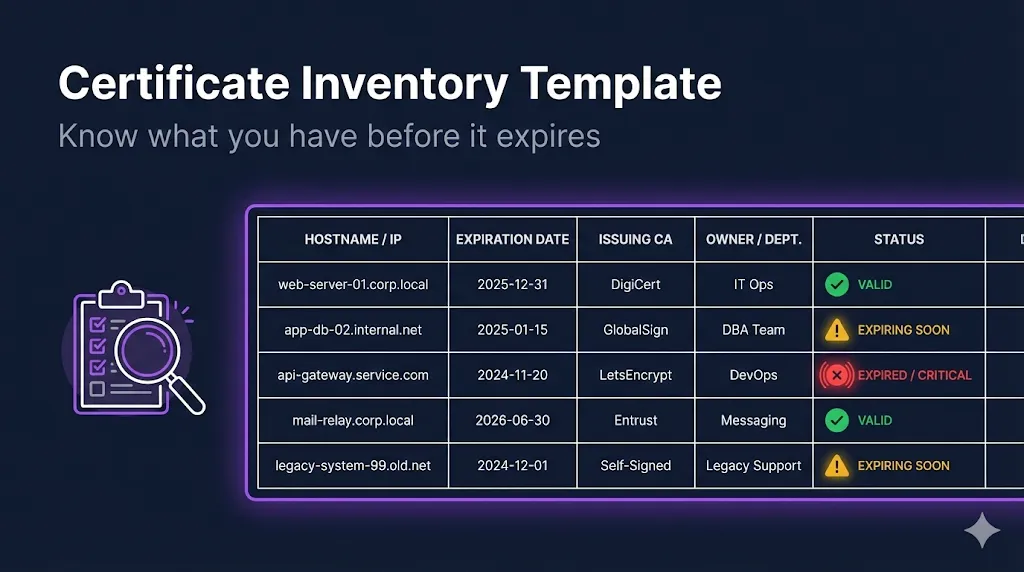
A pre-built spreadsheet for tracking certificate inventory. Not a replacement for a CLM, but a structured starting point for organizations that need visibility without enterprise tooling.
Excel Template
Full formatting included
Ready-to-use Excel file with all 4 tabs, conditional formatting, dropdown validation, and formulas. Just download and start tracking.
Already imported the CSV into Excel?
Here's how to add the same formatting as the Excel template:
1. Add the "Days Until Expiry" formula (Column M)
In cell M2, enter this formula and copy down:
=IF(L2<>"", L2-TODAY(), "")2. Add conditional formatting for expiration alerts
Select column M, then go to Home → Conditional Formatting → New Rule:
- Red fill: Format cells where value is less than 0
- Orange fill: Format cells where value is between 0 and 29
- Yellow fill: Format cells where value is between 30 and 89
- Green fill: Format cells where value is greater than or equal to 90
3. Add dropdown validation (optional)
Create a "Dropdown Values" sheet with lists for Environment, Certificate Type, Issuing CA, etc. Then use Data → Data Validation → List to reference those ranges.
What's In The Template
| Column | Description | Example |
|---|---|---|
| Tracking ID | Your internal reference | CERT-2025-0001 |
| Friendly Name | Human-readable identifier | Production API Certificate |
| Common Name (CN) | Certificate CN | api.acme.com |
| SANs | All Subject Alternative Names | api.acme.com, api-v2.acme.com |
| Issuing CA | Certificate Authority | DigiCert |
| Certificate Type | TLS, Client, CodeSign, etc. | TLS |
| Environment | prod, staging, dev, etc. | prod |
| Purpose/Description | What this cert is used for | Main API endpoint TLS |
| Server/Location | Where it's deployed | api-server-01, AWS ALB |
| Key Type | RSA-2048, ECC-P256, etc. | RSA-2048 |
| Valid From | Certificate start date | 2024-01-15 |
| Expires | Expiration date | 2025-01-15 |
| Days Until Expiry | Auto-calculated | =B2-TODAY() |
| Owner | Team/person responsible | Platform Team |
| Renewal Owner | Who handles renewal | John Smith |
| Private Key Location | Where key is stored | /etc/ssl/private/ |
| Renewal Method | Manual, ACME, Venafi, etc. | Manual |
| Notes | Additional context | Renewed annually in Q4 |
Built-In Expiration Alerts
The template includes conditional formatting that automatically highlights certificates based on their expiration status:
Included Tabs
Instructions
How to use the template
Certificate Inventory
Main tracking sheet
Dropdown Values
Environment, Type, CA lists (for data validation)
Dashboard
Summary stats (count by status, by CA, by environment)
Getting Started
Quick Start
- 1.Start with your 10 most critical certificates
- 2.Don't aim for perfection—get something documented
- 3.Set a calendar reminder to review monthly
- 4.Assign renewal owners, not just certificate owners
Pro Tips
- Export from your CA portals to populate initial data
- Use your naming convention for the Friendly Name column
- Color-code environments for quick visual scanning
- Add this as a recurring agenda item in team meetings