Quick Answer: What is S/MIME?
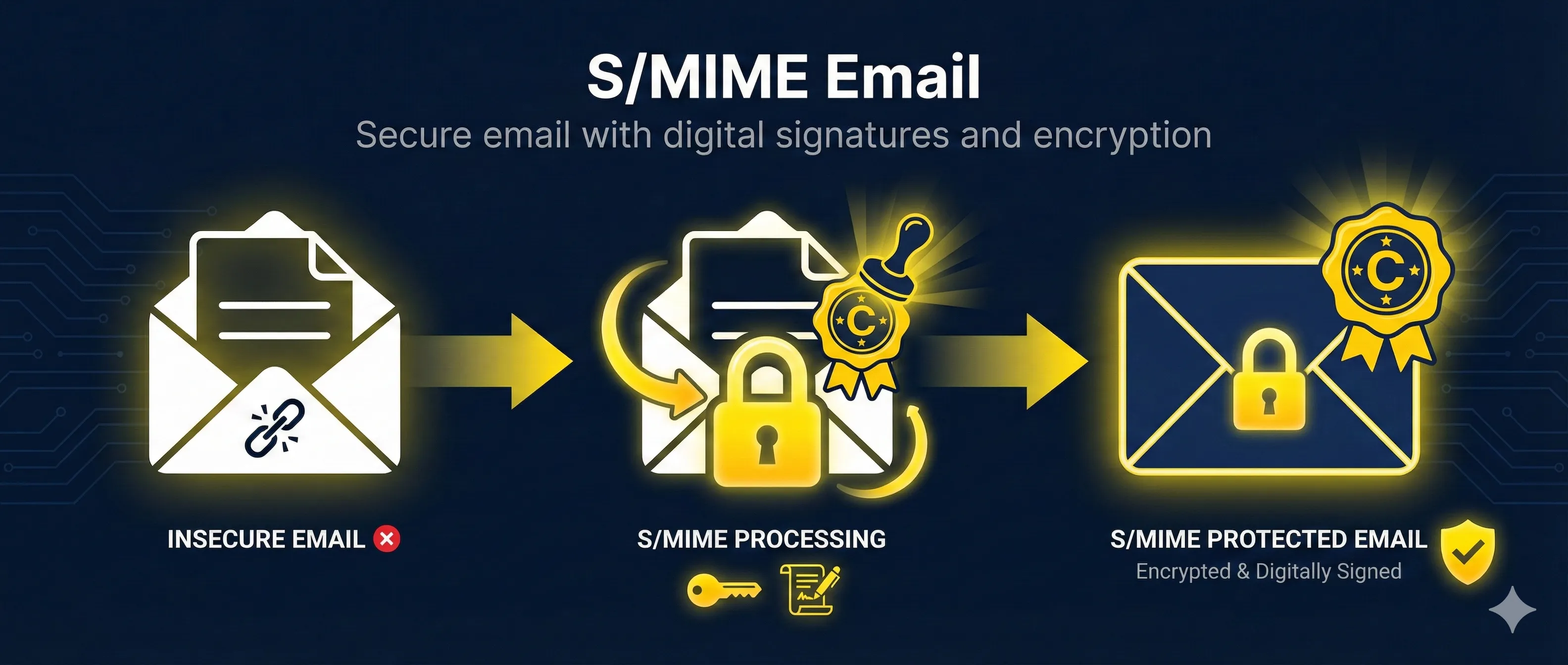
S/MIME (Secure/Multipurpose Internet Mail Extensions) is a standard for securing email using digital signatures and encryption. It proves who sent an email and can make email content unreadable to anyone except the intended recipient.
S/MIME is built into most major email clients (Outlook, Apple Mail, Thunderbird) and uses X.509 certificates from Certificate Authorities—the same trust model as HTTPS.
Signing vs Encryption
S/MIME offers two distinct protections that can be used separately or together:
Signing Only
- Authenticity: Proves email came from you
- Integrity: Detects if message was modified
- Non-repudiation: Sender can't deny sending
Encryption Only
- Confidentiality: Only recipient can read
- Protected at rest: Encrypted on mail servers
- Protected in transit: Can't be intercepted
Best Practice: Sign + Encrypt
For maximum security, use both. The standard approach is "sign-then-encrypt": first sign the message (proving it's from you), then encrypt the signed message (hiding everything).
How S/MIME Signing Works
Alice writes an email to Bob. The email client is configured to sign outgoing messages.
The email client computes a SHA-256 hash of the message body and headers.
Alice's private key encrypts the hash, creating the digital signature.
The signature and Alice's certificate (containing her public key) are attached to the email.
Bob's email client uses Alice's public key to decrypt the signature, then compares hashes. If they match, the email is verified.
# Create S/MIME signature with OpenSSL
openssl smime -sign -in message.txt -out signed.p7m \
  -signer alice.crt -inkey alice.key -outform DER

# Verify S/MIME signature
openssl smime -verify -in signed.p7m -inform DER \
  -CAfile ca-bundle.crt -out verified.txt
How S/MIME Encryption Works
S/MIME uses hybrid encryption: fast symmetric encryption for the message, asymmetric encryption for the key.
Alice needs Bob's S/MIME certificate. This comes from a previous signed email from Bob, a corporate directory, or manual exchange.
Alice's email client generates a random AES-256 session key for this email only.
The message is encrypted with the fast symmetric session key.
The session key is encrypted with Bob's public key. Only Bob's private key can decrypt it.
Bob's private key decrypts the session key, which then decrypts the message.
# Encrypt email with S/MIME
openssl smime -encrypt -aes256 -in message.txt -out encrypted.p7m \
  -outform DER bob.crt

# Decrypt S/MIME email
openssl smime -decrypt -in encrypted.p7m -inform DER \
  -recip bob.crt -inkey bob.key -out decrypted.txt
Getting S/MIME Certificates
| Source | Cost | Best For |
|---|---|---|
| Actalis (Free) | $0 | Personal email, testing |
| DigiCert, Sectigo | $20-50/year | Individual professionals |
| Microsoft Intune | Subscription | Enterprise (auto-deployed) |
| Internal CA | Setup cost | Large enterprise, internal only |
S/MIME Certificate Requirements
- • Key Usage: Digital Signature, Key Encipherment
- • Extended Key Usage: Email Protection (1.3.6.1.5.5.7.3.4)
- • Subject: Must include your email address
- • Validity: Typically 1-3 years
Setup Guide by Email Client
Microsoft Outlook (Desktop)
- 1. File → Options → Trust Center → Trust Center Settings
- 2. Email Security → Import/Export → Import your .p12 file
- 3. Under "Encrypted email", select your certificate
- 4. Check "Add digital signature" and/or "Encrypt contents"
Apple Mail (macOS/iOS)
- 1. Double-click .p12 file to import to Keychain
- 2. Apple Mail automatically detects S/MIME certificates
- 3. When composing, click lock icon to encrypt or signature icon to sign
Mozilla Thunderbird
- 1. Account Settings → End-To-End Encryption
- 2. Under S/MIME, click "Manage S/MIME Certificates"
- 3. Import your .p12 file
- 4. Select certificates for signing and encryption
Gmail (Web)
Gmail only supports S/MIME for Google Workspace Enterprise accounts. Personal Gmail accounts cannot use S/MIME natively.
S/MIME vs PGP Comparison
| Feature | S/MIME | PGP/GPG |
|---|---|---|
| Trust Model | CA hierarchy (like HTTPS) | Web of trust (peer-based) |
| Key Distribution | Certificates from CAs | Key servers, manual exchange |
| Email Client Support | Excellent (built-in) | Requires plugins |
| Enterprise Deployment | Well-supported | Difficult |
| Setup Complexity | Medium | High |
| Typical Users | Enterprise | Technical users, journalists |
When to use S/MIME: Corporate environments, integration with existing PKI, when you need built-in email client support.
Enterprise Deployment
Key Escrow Considerations
The Problem
If an employee leaves or loses their private key, all their encrypted emails become permanently unreadable. For compliance and business continuity, enterprises often implement key escrow—securely storing copies of encryption keys.
Deployment Options
Microsoft Intune
- • Auto-enroll certificates via SCEP/PKCS
- • Deploy to Outlook mobile
- • Integrate with Azure AD
Google Workspace
- • S/MIME for Enterprise Plus
- • Upload user certificates via API
- • Gmail web and mobile support
Related Resources
Digital Signatures
Understand the cryptographic foundation behind S/MIME email signing.
Encryption Basics
Learn symmetric and asymmetric encryption used in S/MIME.
Certificate Anatomy
Explore the X.509 certificate structure used in S/MIME.
Extended Key Usage
Understand the Email Protection EKU required for S/MIME certificates.
Mutual TLS (mTLS)
Compare S/MIME with mTLS for secure client authentication.
Frequently Asked Questions
Do both sender and recipient need S/MIME?
For signing: Only the sender needs a certificate. Anyone can verify. For encryption: You need the recipient's public key (certificate). They need their private key to decrypt. Both parties need S/MIME for two-way encrypted communication.
Can I use the same certificate on multiple devices?
Yes! Export your certificate as a .p12 file (with private key) and import it on each device. Keep this file secure—anyone with it can sign as you or decrypt your emails.
What happens when my certificate expires?
You can't send new signed/encrypted emails. Old signed emails remain verifiable. Old encrypted emails can still be decrypted if you keep the old key. Get a new certificate before expiration for seamless transition.
Is S/MIME better than end-to-end encryption apps?
Different tools for different needs. S/MIME works with standard email and is enterprise-friendly. Apps like Signal offer simpler setup but require both parties to use the same app. S/MIME is better for business email compliance.
Can I encrypt email to multiple recipients?
Yes! The session key is encrypted separately for each recipient's public key. Each recipient can decrypt using their own private key. You need everyone's certificate to send encrypted email to a group.
See S/MIME in action
Watch the signing and encryption processes step-by-step in our interactive demo.
Try the S/MIME Demo